7 Best Patch Layout Apps for Battle Vests
Seven tools for planning patch layouts before you sew, from purpose-built jacket builders to general image editors, so you can pick the right one for your build.
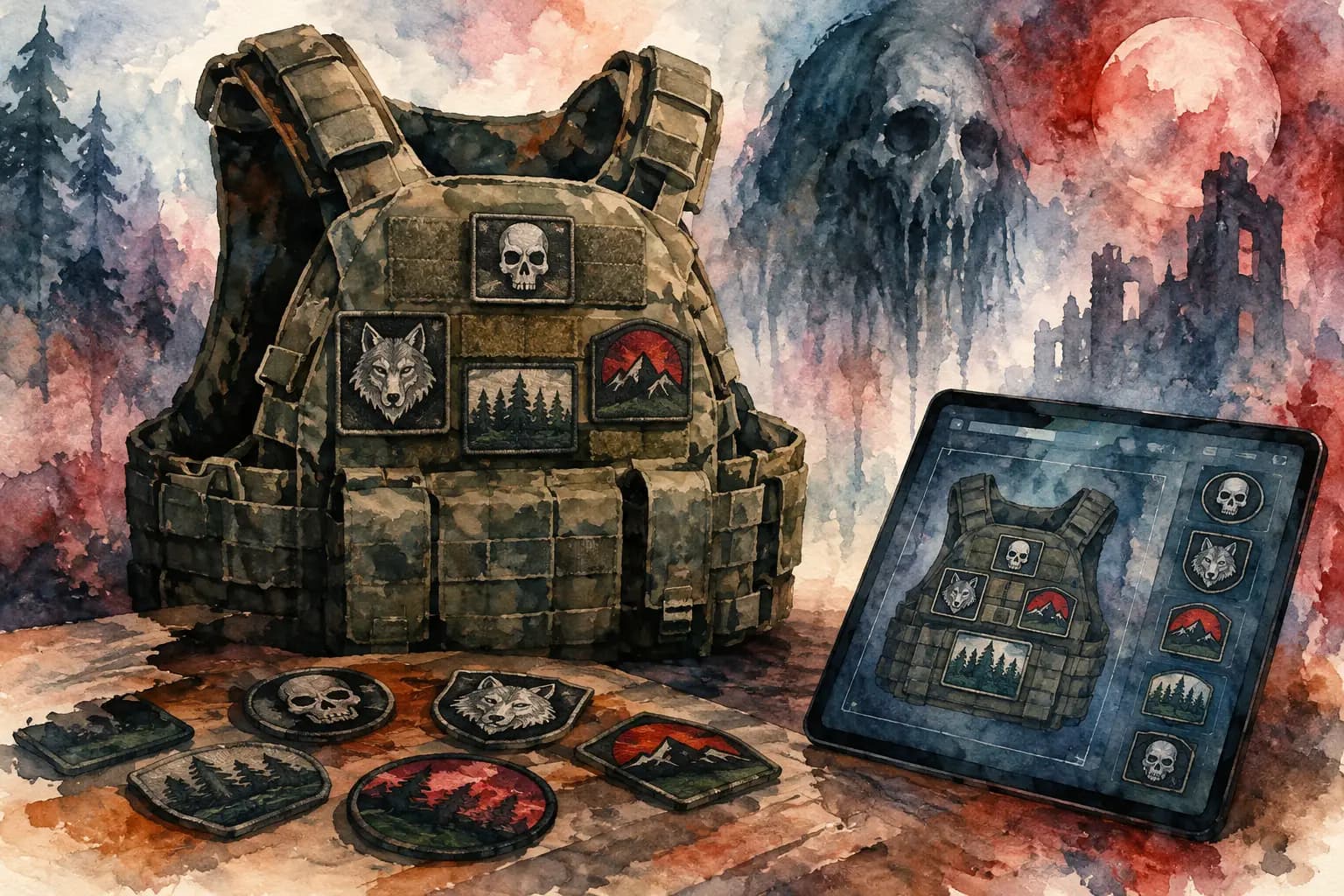
Watercolor illustration of a patch-covered tactical vest beside loose patches and a tablet showing a digital patch layout app.
A backpatch that looked perfect in your hand can swallow half a vest once it is sewn on. A chest patch can fight with a pocket flap. And that stack of expensive tour patches does not get cheaper after you stitch one in the wrong place. The best patch layout apps let you work through those decisions before a needle touches denim or leather.
For a battle jacket, generic design software and purpose-built planners do different jobs. One might be great for cleaning up an image, while another helps you see whether your circular patch actually fits between a shoulder seam and a collar. The right choice depends on how you build, what device you use, and how much technical control you want.
What a Patch Layout App Needs to Do
A useful layout tool should show more than a blank rectangle with stickers on it. Battle vests have pockets, seams, snaps, lapels, panels, and awkward curved areas that affect where patches can realistically go. Seeing your layout on a jacket or vest template is the difference between making a collage and making a sewing plan.
At minimum, look for the ability to upload patch images, move them freely, resize them, and rotate them. Front and back views matter because a tight front can be balanced by a bold back, not necessarily by cramming in more patches. If you are planning carefully, real-world measurements are even better. A patch that appears to fit on-screen still needs to fit in centimeters or inches on your actual garment.
Color also deserves attention. Black-and-white band logos, red thread on blue denim, and a pile of dark woven patches can turn into visual mud fast. A grayscale view or quick contrast check helps reveal whether the design still reads from a few feet away.
The Best Patch Layout Apps for Different Builds
1. The Black Thread
The Black Thread is the most direct option if the project is specifically a kutte, battle vest, or battle jacket. Rather than asking you to fake a garment with a blank canvas, it starts with realistic jacket and vest templates. Choose the garment color and style, switch between front and back views, then add patches from your own images or a community patch library.
Its strength is practical planning. You can drag patches into place, scale and rotate them, check grayscale contrast, and work with real-world centimeter measurements. That makes it easier to answer the questions that matter before sewing: Will the backpatch leave room for side patches? Is this chest piece too close to the buttons? Does the layout look balanced when the vest is actually worn?
You can begin designing for free without an account or download. Creating a free account makes sense when you want to save designs, revisit a layout after another patch haul, or keep more than one jacket project going. For most metalheads planning a physical garment, this is the best fit because it was built around the way battle jackets actually come together.
2. Canva
Canva works well when you want a fast, simple mood-board approach. Upload photos of your patches, arrange them over a photo of your own vest, and experiment with color, logo size, or a themed back layout. It is accessible on desktop and mobile, so it can be handy when you are sorting patches on the floor and want to test an idea immediately.
The trade-off is accuracy. Canva is not made for garment construction or patch placement. You will need to supply your own jacket photo or mockup, and it will not automatically account for seams, pockets, or the dimensions of a real patch. Use it for rough concepts, not for precise placement on a packed vest.
3. Procreate
For iPad builders who like to sketch and make the layout their own, Procreate gives you a lot of creative freedom. You can photograph your jacket, place each patch on separate layers, redraw patch borders, add stitching marks, and test painted details or studs alongside your patch plan.
That freedom comes with a learning curve. You have to build the template yourself and understand layers, transforms, and image sizing. Procreate is especially good for a one-of-one jacket with hand-painted panels, custom embroidery, or a layout that needs a little visual chaos before it feels right. It is less useful if you simply want to upload patches and get a measurement-aware plan in a few minutes.
4. Adobe Photoshop
Photoshop is the heavy-duty choice for people who already know their way around image editing. It can handle high-resolution patch scans, complex cutouts, perspective adjustments, and detailed mockups of your own jacket. If you are documenting a massive patch collection or preparing art for printing, its control is hard to beat.
For a typical battle vest, though, Photoshop can be more tool than you need. It takes time, has a real learning curve, and does not understand jacket conventions without you setting everything up yourself. It is best for experienced designers, artists, or collectors who want exact image work as well as layout planning.
5. Photopea
Photopea is a browser-based image editor with a workflow similar to Photoshop. It is a strong option if you need layers, selections, and transforms but do not want to install desktop software. You can upload a photo of your garment, remove patch backgrounds, and create a detailed mockup from any computer.
It is still an image editor, not a battle jacket builder. Expect to create your own canvas and measure patches manually. The interface can also feel busy when all you want is to decide whether a D-beat patch belongs above or below a crust logo. But for a free-form digital mockup with more editing control than Canva, it earns a place on the list.
6. Figma
Figma is a surprising but useful choice for people who enjoy organizing a layout with precision. Its frames, alignment tools, and reusable components make it easy to compare several versions of a back panel or keep a clean inventory of patch images. You can duplicate a vest design, move one patch, and see which version has better spacing without destroying the original idea.
The downside is that Figma is designed for interface design, not clothes. It has no built-in garment templates or patch-specific measurements, so the setup is on you. Still, it can work well for someone planning multiple vests, sharing drafts with friends, or organizing a collection before deciding what gets sewn where.
7. A Phone Photo Editor
Sometimes the best app is the one already on your phone. Take a straight-on photo of the front or back of your vest, photograph your patches against a plain background, and use your phone's cutout, sticker, or markup tools to test rough placements. This is not a replacement for a full layout plan, but it is useful at a record store, merch table, or festival when a new patch changes the whole idea.
Keep expectations realistic. Phone edits distort scale easily, and a tilted garment photo can make placement look more generous than it is. Treat this method as a quick gut check, then verify the dimensions before you sew.
How to Choose the Right Tool
Choose a purpose-built planner if you want to map a real vest, use actual patch dimensions, and avoid expensive placement mistakes. Choose Canva or a phone editor if you are still testing a theme and want quick visual options. Choose Procreate, Photoshop, Photopea, or Figma if your project includes custom art, detailed photo editing, or a workflow you already know well.
There is no prize for using the most complicated software. A crusty black vest with crooked hand-sewn patches does not need a corporate-looking mockup. What it does need is intent. The tool should help you decide what belongs on the garment, what needs more breathing room, and what can wait for the next project.
Plan Before You Sew
Start by adding the patches you know are non-negotiable. For most builders, that means the backpatch, favorite bands, memorial pieces, or patches with a shape that demands a specific spot. Place those first, then work outward with smaller rectangles, circles, and odd-shaped pieces.
Do not judge the layout only at 100 percent zoom. Step back or use a grayscale view to see whether the major logos still stand apart. Check the spaces near armholes, closures, and pockets. Leave enough room to stitch securely, especially on thick denim, lined jackets, or leather. A layout can be dense without becoming impossible to sew.
Your first draft is allowed to look wrong. Move things around, save versions, and let the vest sit for a day before committing. The finished jacket should carry your bands, your memories, and your taste - not somebody else's rules.